 critical cactus
Anker USB C Smart Display Hub is our pick for the Best Mac Desk Accessories because it consolidates essential connectivity and power management into a single, clutter-reducing desktop unit.
For users managing complex setups, the UGREEN Vertical Laptop Stand helps reclaim valuable surface area, while the VSD M18 Macro Pad offers programmable shortcuts for demanding creative or professional workflows.
Selecting the right accessories for a Mac workspace requires balancing port availability, ergonomic support, and physical footprint. We focus on tools that integrate seamlessly with macOS while addressing common pain points like cable management, screen height, and shortcut accessibility.
If you are looking to further refine your workspace, our guide on the Best Mac Accessories Organizer provides additional insights on keeping your smaller peripherals tidy.
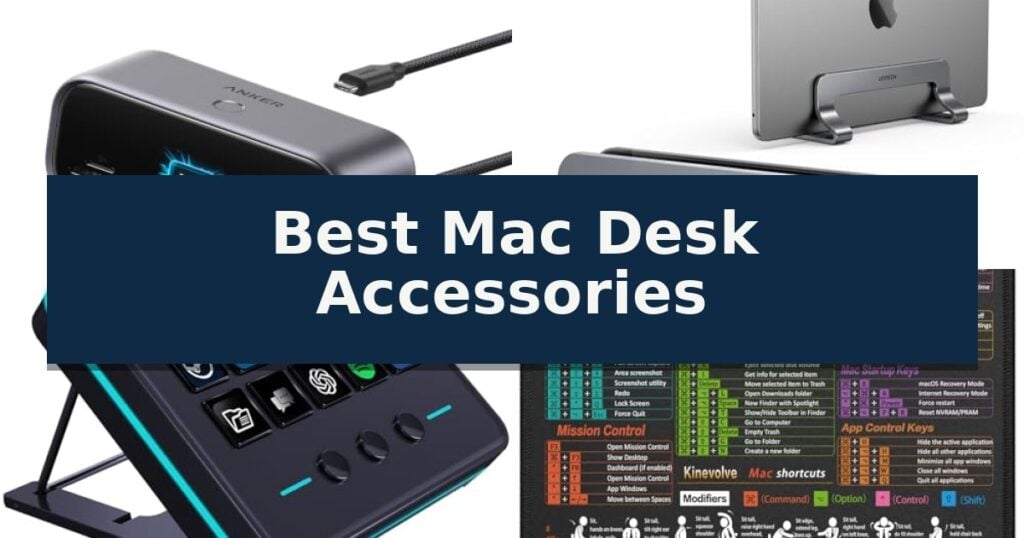
10 Best Mac Desk Accessories in 2026 Honest Reviews
Quick Comparison
| Product | Best For | Key Strength | Score |
|---|---|---|---|
| Anker USB C Smart Display Hub | Best Overall | 10-in-1 connectivity including HDMI 2.1 and DisplayPort 1.4. | 4.9 |
| UGREEN Vertical Laptop Stand | Maximizes desk space efficiently | Space-saving vertical design maximizes available desk area. | 4.5 |
| VSD M18 Macro Pad | Customizable controls for workflows | 15 customizable LCD keys that support custom images and animations for clear function labeling. | 4.3 |
| Kinevolve macOS Shortcut Mouse Pad | Instant access to system commands | Integrated macOS shortcut guide for quick command reference. | 4.4 |
| Laborio Keyboard Wrist Rest | Ergonomic support for long typing | Integrated ergonomic design combines a keyboard riser and wrist rest for improved posture. | 4.9 |
| OPNICE Monitor Stand Riser | Elevated viewing with storage | Ergonomic design promotes better posture by raising the screen to eye level. | 4.6 |
| CaSZLUTION Magic Mouse Stand | Tidy charging for Apple mice | Vertical mount design saves desk space. | 4.6 |
| bylitco Mac Mini Mount Bracket | Hidden mounting for compact builds | Durable all-metal construction for long-term reliability. | 4.6 |
| MDOZQ Monitor Memo Board | Keeps important notes visible | Transparent acrylic design keeps your workspace looking clean and organized. | 4.8 |
| Synerlogic Mac OS Shortcut Sticker | Directly on your palm rest | Visible reference for essential keyboard shortcuts directly on the palm rest. | 4.6 |
How We Chose
When evaluating the best Mac desk accessories, we prioritize functional integration and build quality. An experienced reviewer assesses how each item addresses specific desktop limitations, such as limited port access or poor posture, ensuring that every addition provides a tangible improvement to daily productivity rather than simply adding more clutter to the workspace.
- Connectivity and Port Versatility
- Ergonomic Design and Adjustability
- Build Quality and Material Durability
- Compatibility with macOS Systems
- Space-Saving Footprint
1 Anker USB C Smart Display Hub — Smart status for complex setups
Managing a high-performance workstation requires more than just a powerful computer; it demands a clean, organized, and efficient interface. The Anker USB C Smart Display Hub simplifies complex setups by integrating a 10-in-1 design that consolidates your peripherals, power delivery, and display outputs into a single, streamlined unit.
This hub is engineered to reduce cable clutter by routing 80% of its ports toward the rear, ensuring your desk remains tidy. It features a 2.3ft built-in host cable for flexible placement, while the integrated Smart Built-In Display provides real-time monitoring of port status, charging power, data speeds, and device temperature. Users can even customize this display with personal images or utilize the built-in focus timer.
Connectivity options are extensive, including an HDMI 2.1 port, a DisplayPort 1.4 port, and multiple USB-A and USB-C ports capable of 10 Gbps data transfer. For power, it supports 80W pass-through charging when paired with a 100W charger, keeping your laptop powered throughout the workday. It also includes a Gigabit Ethernet port and SD/microSD 3.0 card slots for high-speed data access.
While the hub supports dual 2K@240Hz displays for Windows users, it is important to note that on macOS, external monitors will display identical content. This device is compatible with laptops featuring USB-C ports that support Power Delivery and DisplayPort, including Thunderbolt 3, 4, or 5 standards. It is an effective solution for professionals who need to manage multiple high-speed peripherals from a single connection point.
Best for: Professionals and creators who need to consolidate multiple high-speed peripherals and displays into a single, organized workstation hub.
Skip if: Users requiring extended desktop support for dual monitors on macOS will find this device unsuitable as it only mirrors content.
- 10-in-1 connectivity including HDMI 2.1 and DisplayPort 1.4.
- Smart built-in display for real-time monitoring and customization.
- Rear-facing port design significantly reduces desk cable clutter.
- Supports up to 80W pass-through charging for host devices.
- Mirroring limitation for dual displays when used with macOS.
- Charger not included in the package.
2 UGREEN Vertical Laptop Stand — Maximizes desk space efficiently
Maximizing desk real estate often requires thinking vertically, and the UGREEN Vertical Laptop Stand offers a streamlined solution for reclaiming workspace. By holding a laptop in an upright position, this stand significantly reduces the footprint compared to traditional flat storage, making it a practical addition for users who rely on external monitors or keyboards.
Constructed from premium aluminum alloy, the stand provides a sturdy and stable base that prevents wobbling. The interior of the slot is lined with non-slip silicone pads, which serve to protect the device from scratches while ensuring a secure grip. The base also features silicone padding to maintain stability on various desk surfaces.
Versatility is a core component of the design, featuring an adjustable width that accommodates devices ranging from 0.47 inches to 1 inch in thickness. Users can easily customize the fit by twisting the integrated screw, allowing the stand to support a wide variety of hardware, including large gaming laptops up to 17.3 inches.
With a compact, portable size of 5.9 inches by 3.2 inches by 2 inches, this accessory is well-suited for professionals who need to maintain an organized environment, whether at a permanent workstation or while working on the go.
Best for: Users looking to save desk space by storing their laptop vertically while using an external monitor setup.
Skip if: Users who require a stand that elevates the laptop screen to eye level for ergonomic typing or viewing.
- Space-saving vertical design maximizes available desk area.
- Adjustable slot width accommodates devices from 0.47" to 1" thick.
- Premium aluminum alloy construction ensures a sturdy and wobble-free base.
- Silicone padding prevents scratches and provides non-slip stability.
- Fixed vertical orientation does not allow for adjustable viewing angles or heights.
3 VSD M18 Macro Pad — Customizable controls for workflows
Streamlining complex desktop workflows requires more than just a standard keyboard, and the VSD M18 Macro Pad offers a dedicated hardware interface to manage multi-step sequences and media controls. By utilizing 15 programmable LCD keys alongside three physical buttons, users can assign specific actions, app launches, or media playback commands to individual keys, each capable of displaying custom JPG, PNG, or GIF animations.
This device functions as a versatile stream controller, supporting single-tap commands for tasks like switching OBS scenes, inputting text, or opening web pages. The integration of an Operation Follow function allows for the execution of multi-shortcut macros in either a custom sequence or simultaneous order, which simplifies repetitive tasks in video editing, music production, and gaming.
Designed for modern desktop environments, the VSD M18 Macro Pad features an adjustable RGB surround light ring with auto-cycling modes to provide visual feedback in dim lighting. It connects via a USB-C cable and maintains compatibility with Windows 11 and macOS 11.0 or newer, while offering SDK documentation for those requiring custom secondary development.
Beyond its primary macro functions, the unit includes built-in plugins such as a clock, stopwatch, calendar, and weather module to assist with daily time management. Its solid construction ensures stability during intensive use, making it a functional addition for creators who need quick access to complex software workflows without cluttering their main workspace.
Best for: Content creators and professionals who need to trigger complex, multi-step software macros and media controls with a single physical tap.
Skip if: Users requiring native Linux support or those who prefer a standard keyboard layout without the need for programmable LCD visual keys.
- 15 customizable LCD keys that support custom images and animations for clear function labeling.
- Multi-shortcut macro programming with sequential or simultaneous execution capabilities.
- Wide system compatibility with Windows and macOS via USB-C connection.
- Integrated functional plugins including a clock, stopwatch, and calendar for desktop utility.
- No native Linux support for plug-and-play operation.
- Requires firmware updates for advanced custom RGB tone adjustments.
4 Kinevolve macOS Shortcut Mouse Pad — Instant access to system commands
Navigating complex software environments often requires constant reference to system commands, which is why the Kinevolve macOS Shortcut Mouse Pad serves as a functional desk companion. By integrating a practical macOS shortcut guide directly into the workspace, it provides immediate visual access to essential system functions and common commands, reducing the need to toggle between windows or search for documentation.
Measuring 11.8" x 9.8", this compact and portable design is intended for students, designers, and professionals who require a consistent surface across different workstations. The finely-textured surface is engineered for precise mouse control, supporting both standard office tasks and gaming sessions with smooth, accurate tracking.
Durability and maintenance are addressed through the inclusion of stitched edges that prevent fraying over time. The pad features a non-slip rubber base to ensure stability during use, while the water-resistant fabric allows for straightforward cleaning. High-resolution printing ensures that the shortcut text remains legible even after regular use.
This accessory is a practical addition for any Mac-centric setup, offering a balance between a standard mouse pad and a quick-reference tool. Its lightweight construction and slim profile make it easy to transport in laptop bags, ensuring that users have their preferred surface and command reference wherever they work.
Best for: macOS users who want a quick-reference guide for system shortcuts integrated into their mouse pad.
Skip if: Users who prefer a completely blank desk surface or those who require a significantly larger desk mat for full keyboard and mouse coverage.
- Integrated macOS shortcut guide for quick command reference.
- Stitched edges to prevent fraying and increase longevity.
- Non-slip rubber base provides a stable, secure grip on desk surfaces.
- Water-resistant fabric simplifies maintenance and cleaning.
- Fixed size may be too small for users accustomed to oversized desk mats.
- Shortcut text is limited to the printed layout and cannot be customized.
5 Laborio Keyboard Wrist Rest — Ergonomic support for long typing
Maintaining a comfortable posture during long hours at a desk is essential for productivity, and the Laborio Computer Keyboard Wrist Rest offers a dedicated solution for those seeking improved ergonomics. This unit combines a tilted keyboard riser with a dedicated wrist pad, specifically engineered to reduce tension in the wrists, forearms, and elbows.
Constructed from sturdy acrylic with a smooth, polished finish, the stand provides a stable platform for most standard, membrane, and foldable keyboards. The riser elevates the keyboard to an ergonomic angle, while the integrated wrist rest features soft and breathable memory foam to provide consistent support during extended typing sessions.
Practicality is built into the design through several functional details. The bottom of the keyboard tray is equipped with a non-slip silicone strip, and the wrist rest features a non-slip rubber base to ensure the entire setup remains firmly in place on your desk. Users should note that the product includes a protective film that must be removed before use.
Measuring 16.77"L x 5.43"W x 1.45"H for the holder and 16.9"L x 3.5"W for the wrist rest, this accessory is designed to accommodate standard desktop layouts. It is important to verify your keyboard dimensions prior to purchase, as this model is not compatible with irregular-shaped keyboards.
Best for: Users seeking an ergonomic, all-in-one acrylic riser and memory foam wrist support for standard desktop keyboards.
Skip if: Users with irregular-shaped keyboards or those requiring a height-adjustable stand beyond the fixed ergonomic angle provided.
- Integrated ergonomic design combines a keyboard riser and wrist rest for improved posture.
- Breathable memory foam provides soft, supportive comfort for the wrists.
- Non-slip silicone and rubber bases ensure stability on the desk surface.
- Sturdy acrylic construction offers a durable and polished aesthetic.
- Not compatible with irregular-shaped keyboards.
- Fixed height may not suit all user preferences.
6 OPNICE Monitor Stand Riser — Elevated viewing with storage
Maintaining an organized workstation is essential for productivity, and the OPNICE Monitor Stand Riser offers a practical solution by elevating your display to an optimal eye level. This ergonomic adjustment helps reduce neck, shoulder, and back strain during extended periods of computer use, making it a functional addition to any home office or gaming setup.
Beyond its ergonomic benefits, this 2-tier monitor stand is engineered to maximize desk space. It features a smooth-sliding drawer and 2 hanging pen holders, providing dedicated storage for notebooks, office supplies, and small accessories. By keeping these items off your primary work surface, it helps maintain a clean and clutter-free environment.
The construction utilizes premium metal with a reinforced structure, ensuring the unit remains stable and wobble-free even when supporting heavier items like printers or large monitors. The inclusion of adjustable non-slip feet further enhances stability while protecting your desk surface from scratches.
With its sleek, minimalist design, the stand integrates easily into various decor styles. It arrives ready for use and is supported by a 100-day return policy, offering a straightforward way to upgrade your workspace organization and viewing comfort.
Best for: Users looking to improve ergonomic posture while simultaneously decluttering their workspace with integrated storage.
Skip if: Users who require a monitor stand with specific height-adjustment mechanisms beyond the fixed riser height or those with extremely limited desk footprints.
- Ergonomic design promotes better posture by raising the screen to eye level.
- Integrated storage includes a sliding drawer and two pen holders.
- Heavy-duty metal construction ensures a stable, wobble-free base.
- Adjustable non-slip feet protect desk surfaces and improve grip.
- Fixed height design does not allow for vertical adjustment beyond the base unit.
- Limited surface area may not accommodate extra-wide ultra-wide monitors.
7 CaSZLUTION Magic Mouse Stand — Tidy charging for Apple mice
Maintaining a clean and organized workspace is essential for productivity, and the CaSZLUTION Magic Mouse Stand offers a dedicated solution for managing your peripherals. This clear acrylic holder is specifically engineered to keep your Apple Magic Mouse 1 or 2 in an upright, vertical position, effectively reclaiming valuable desk real estate while providing a designated spot for your device.
The stand features a thoughtful design that prioritizes both protection and stability. It is lined with flannel to safeguard the surface of your mouse from potential scratches during storage. To ensure the unit remains secure on your desk, the base is equipped with 4 small anti-slip pads, preventing the holder from sliding or tipping over during daily use.
Functionality is at the core of this accessory, as it allows for charging in style. The structure includes a customized opening for your charging cable, enabling you to plug in your mouse while it rests upright in the stand. This setup ensures your cable remains organized and accessible, preventing it from getting lost or tangled among other items.
Designed for immediate use, the CaSZLUTION Magic Mouse Stand requires no assembly. Its clear, minimalist aesthetic integrates seamlessly into most modern desk setups, keeping your workspace tidy without adding visual clutter. Note that this package includes only the acrylic stand; the mouse and charging cable are not included.
Best for: Users looking to organize their desk space while keeping their Apple Magic Mouse upright and protected during charging.
Skip if: Users who prefer a flat charging surface or those who do not use an Apple Magic Mouse 1 or 2.
- Vertical mount design saves desk space.
- Flannel lining protects the mouse from scratches.
- Anti-slip pads provide stability on smooth surfaces.
- Customized cable opening allows for convenient charging.
- Stand only; does not include the mouse or charging cable.
- Fixed vertical orientation may not suit all desk layouts.
8 bylitco Mac Mini Mount Bracket — Hidden mounting for compact builds
Maximizing your workspace often requires moving hardware off the desk surface entirely, and the Bylitco All Metal Mount Holder Bracket for Mac mini M4/M5/M6 Pro 2024 provides a dedicated solution for this task. By utilizing a high-quality metal construction, this bracket allows you to secure your device either under a desk or behind a monitor, effectively clearing clutter while maintaining easy access to your ports.
The design prioritizes both stability and device protection. It features soft padding that holds the unit firmly in place, which serves to prevent scratches and minimize resonance during operation. This thoughtful inclusion ensures that your hardware remains secure without the risk of accidental drops or surface damage.
Installation is simplified through the inclusion of specific hardware for different mounting surfaces. Whether you are attaching it to the underside of a desk or utilizing existing VESA-style mounting points behind a monitor, the bracket is engineered to provide reliable support force. The all-metal build ensures long-lasting durability, making it a robust choice for a permanent workstation setup.
While this mount is highly effective for cable management and space optimization, users should verify their specific mounting environment before installation. The bracket is designed specifically for the compact footprint of the Mac Mini, providing a clean, hidden look that integrates seamlessly into a professional desk environment.
Best for: Users looking to reclaim desk space by mounting their Mac Mini securely under a desk or behind a monitor.
Skip if: Users who prefer to keep their device on the desk surface or those who lack the necessary mounting points on their specific monitor or desk setup.
- Durable all-metal construction for long-term reliability.
- Space-saving design that clears desk clutter.
- Soft padding prevents scratches and reduces resonance.
- Versatile installation options for both under-desk and behind-monitor mounting.
- Requires specific mounting surfaces such as a desk edge or monitor VESA points.
9 MDOZQ Monitor Memo Board — Keeps important notes visible
Managing a busy workspace often means juggling sticky notes, meeting reminders, and essential business cards that can easily clutter a desk. The MDOZQ Monitor Memo Board offers a practical solution by providing a dedicated, transparent surface that attaches directly to the side of your computer monitor, keeping your most important tasks within your line of sight.
Constructed from durable, transparent acrylic, this memo board is designed to be both lightweight and unobtrusive. The material is waterproof and dirt-resistant, ensuring it maintains a clean appearance even with frequent use. By utilizing the vertical space on the edges of your screen, it helps clear your desk surface while keeping your to-do lists organized and easily accessible.
Installation is straightforward, requiring only that you wipe the edge of your monitor clean before applying the adhesive. The board is designed to be easy to install and remove without leaving behind messy traces. Because the adhesive is quite strong, it is intended for use on the black bezel of your monitor rather than the screen itself, ensuring your display remains protected.
This set includes two boards, allowing you to utilize both the left and right sides of your monitor for maximum organization. Beyond the office, these versatile boards can be applied to cabinets, refrigerators, or walls, serving as a consistent reminder system to improve your daily productivity.
Best for: Professionals and students looking to organize physical notes and reminders without cluttering their desk surface.
Skip if: Users with ultra-narrow monitor bezels, as the adhesive requires a flat surface area to mount securely.
- Transparent acrylic design keeps your workspace looking clean and organized.
- Dual-board set allows for organization on both sides of the monitor.
- Waterproof and dirt-resistant material ensures long-term durability.
- Easy installation and removal process that does not leave residue.
- Not suitable for narrow-bezel monitors due to the adhesive mounting requirements.
- Cannot be applied directly to the screen surface.
10 Synerlogic Mac OS Shortcut Sticker — Directly on your palm rest
Optimizing your workspace for efficiency often involves mastering the complex keyboard shortcuts built into macOS. The Synerlogic Mac OS Shortcut Sticker provides a physical, high-contrast reference guide that adheres directly to your laptop's palm rest, ensuring essential commands are always within your line of sight.
Designed for both beginners and power users, this laminated vinyl accessory eliminates the need to toggle between windows or search online for navigation commands. The sticker is engineered for a stronger hold with its updated adhesive, and it is specifically sized to fit most MacBook Air and Pro models, as well as iMac and Mac Mini setups.
Installation requires a careful, gradual application process to ensure a smooth finish. By folding back a small section of the backing and pressing it down slowly, users can minimize air bubbles. While the adhesive is designed for durability, it may leave a light residue upon removal, which is easily cleaned with a soft cloth and warm, soapy water.
This accessory is made in the USA and serves as a practical tool for students, creatives, and professionals looking to streamline their workflow. It is important to note that this specific version is not compatible with 11-inch or 12-inch MacBooks, for which a smaller universal version is required.
Best for: Users who want to increase their productivity by keeping essential macOS keyboard shortcuts physically visible on their device.
Skip if: Owners of 11-inch or 12-inch MacBooks, as this specific sticker size is not compatible with those smaller form factors.
- Visible reference for essential keyboard shortcuts directly on the palm rest.
- Laminated vinyl construction for long-term durability.
- Stronger adhesive ensures the sticker stays securely in place.
- Broad compatibility with most MacBook Air, Pro, iMac, and Mac Mini models.
- Not compatible with 11-inch or 12-inch MacBook models.
- Requires careful application to avoid air bubbles and ensure a smooth finish.
Best Mac Desk Accessories Buying Guide
Connectivity and Hub Integration
A reliable hub is the foundation of any modern Mac setup, especially for models with limited onboard ports. Look for devices that offer pass-through charging and high-speed data transfer to ensure your peripherals and external displays operate without bottlenecking.
Consider the placement of ports on your chosen hub. Designs that route cables toward the back of the desk help maintain a clean aesthetic, while built-in status displays provide immediate feedback on power delivery and connection speeds.
Optimizing Desk Space
Vertical laptop stands are an effective way to maximize desk space when using your Mac in clamshell mode with an external monitor. These stands allow you to store your device upright, protecting it from spills while keeping your primary workspace clear.
Ensure the stand you select features adjustable width settings to accommodate the specific thickness of your MacBook. Non-slip silicone padding is also essential to prevent scratches and ensure the device remains stable during use.
Ergonomic Support for Typing
Long hours of typing can lead to wrist strain, making ergonomic accessories a vital investment. Keyboard risers and wrist rests help maintain a neutral wrist position, reducing tension in the forearms and elbows.
When choosing a keyboard stand, verify that the dimensions match your specific keyboard model. Acrylic or memory foam materials are common, offering a balance between structural support and comfort for extended work sessions.
Customizing Your Workflow
Macro pads and programmable keypads allow you to trigger complex sequences or launch applications with a single tap. These tools are particularly useful for streamers, video editors, and power users who rely on repetitive software commands.
Look for devices that offer customizable LCD keys or visual feedback. This allows you to map specific icons to your most-used actions, significantly reducing the time spent navigating menus or memorizing keyboard shortcuts.
Managing Peripheral Storage
Small accessories like mouse stands or monitor memo boards help keep essential tools and reminders within reach. A dedicated stand for your mouse can prevent it from sliding off the desk and keeps the charging port accessible.
Monitor memo boards provide a convenient space for sticky notes and business cards, keeping important information visible without cluttering your desk surface. Ensure these boards are compatible with the bezel width of your monitor before installation.
Frequently Asked Questions
Do I need a hub that supports dual displays for my Mac?
While many hubs support dual monitors, macOS often mirrors content across external displays rather than extending them unless specific hardware requirements are met. Always check your Mac model's technical specifications for external display support.
Are vertical laptop stands safe for my MacBook?
Yes, provided the stand is made of sturdy materials like aluminum and features non-slip silicone padding. These stands are designed to hold the laptop securely without obstructing airflow or causing damage.
Can I use a Windows-focused macro pad with my Mac?
Many programmable macro pads are compatible with both Windows and macOS, but software configuration may vary. Check the manufacturer's documentation to ensure the device supports your version of macOS.
How do I ensure a monitor memo board won't damage my screen?
Always attach memo boards to the plastic or metal bezel of your monitor, never directly to the glass screen. Ensure the adhesive is designed for monitor surfaces and follow the manufacturer's cleaning instructions.
Is a keyboard wrist rest necessary for all users?
While not strictly necessary, a wrist rest can significantly improve comfort for users who type for several hours a day. It helps maintain a proper angle, which may reduce the risk of repetitive strain.
Conclusion: Our Top Pick
Our top pick is Anker USB C Smart Display Hub. The best Mac desk accessories are those that solve specific problems, whether it is managing cable clutter, improving ergonomic posture, or speeding up your software workflow. By selecting tools that integrate well with your existing hardware, you can create a more professional and efficient environment.
Focus on high-quality materials and compatibility to ensure your setup remains reliable over time. Investing in the right hub, stand, or input device today will pay off in long-term comfort and productivity.